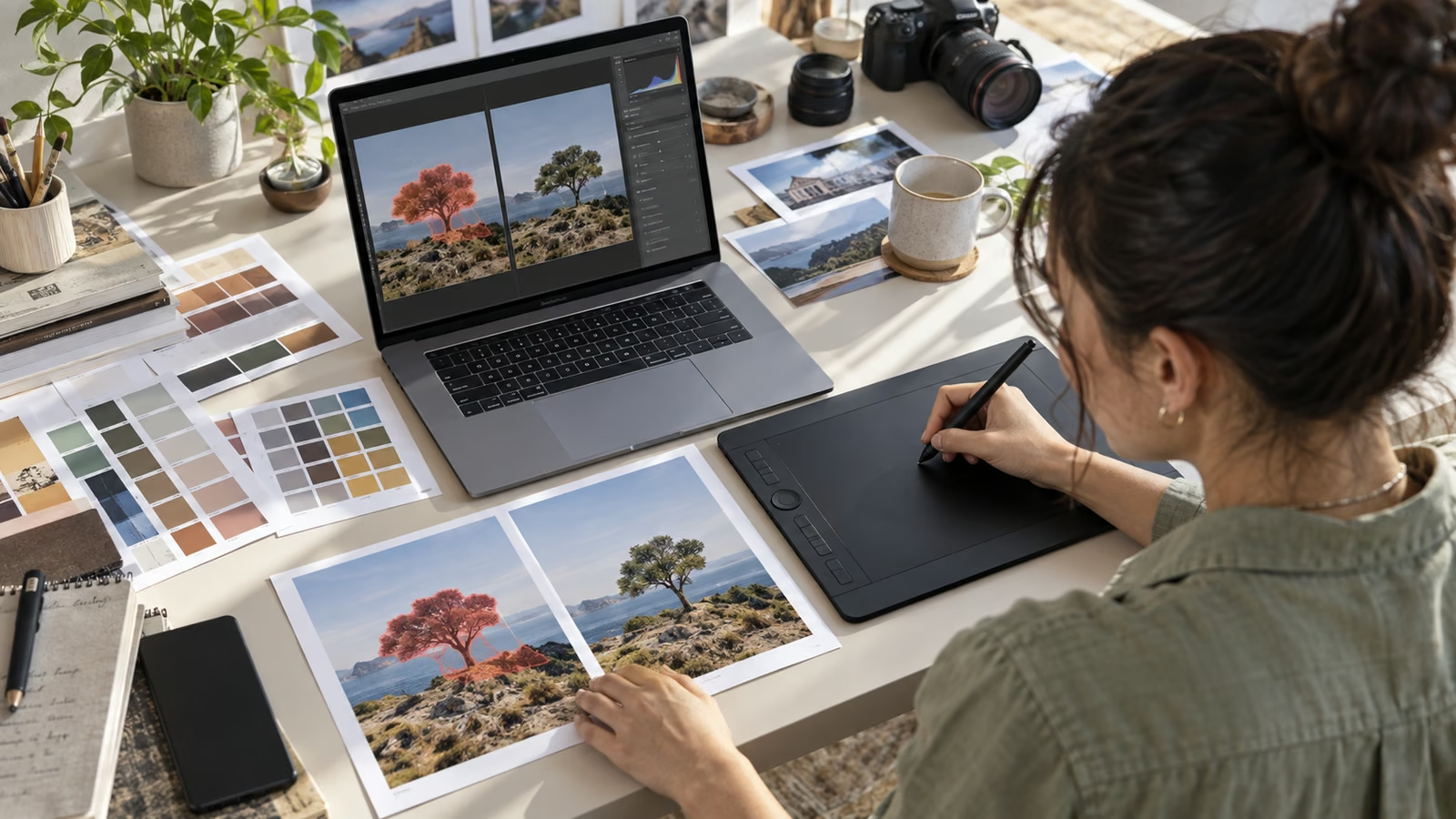
A creator has one approved campaign photo: a ceramic bottle on a kitchen counter, a distracting napkin in the corner, and a client request to make the bottle warmer without changing its label. The fastest edit is not a full regeneration. It is a bounded proof pass: select the napkin, remove only that object, isolate the bottle, adjust its color, then compare the export with the approved source.
Adobe's September 29 announcement, Introducing interactive editing controls for the Adobe plugin in ChatGPT, says creators can select or brush over part of an image, request an edit in conversation, and fine-tune scoped adjustments such as hue, saturation, brightness, and contrast with interactive controls. Adobe also describes hands-on PDF text editing and highlighting in the same side-panel pattern. The rollout began globally on ChatGPT web and app, but account, region, product, and feature availability can change.
Adobe's current Adobe for ChatGPT overview says the unified plugin can work across images, video, documents, and other assets. It also notes that an Adobe account is not required to start, while signing in can unlock more skills, generative calls, storage, and continuity. Check the live interface and terms before putting client material into any connected workflow.
Growit o1 is an expressive pocket AI device in development. Its current Sight workflow is an owner-triggered connected beta that requires a compatible connected service after setup. Final capabilities, supported services, pricing, and availability will be announced before sales open. In this guide, o1 is a deliberate review prompt rather than an autonomous publisher, account operator, or source of guaranteed performance.
Make one named change at a time, preserve the approved source, and prove the final export still says what the creator intended.
Start with a three-column proof card
Before editing, write the artifact that will follow the file through review.
| Source truth | Allowed change | Must remain unchanged |
|---|---|---|
| Approved bottle photo v3 | Remove the loose napkin | Bottle shape and printed label |
| Client color reference | Warm the bottle by a small amount | Counter, shadows, and skin tones |
| Final social crop | Reframe to 4:5 | Required disclosure and safe area |
Add the source filename, owner, rights status, destination, and approval deadline. If the request cannot fit in the middle column, it is still a creative brief rather than an executable edit.
Select before you describe
Use the brush or object selection to bound the target. Then write the request in observable terms: “Remove the white napkin in the lower-left selection and reconstruct the visible counter texture. Do not alter the bottle, label, hands, or lighting.” A broad request such as “clean this up” invites changes the reviewer cannot trace.
After the first result, compare edges, reflections, repeated textures, and nearby objects. A successful removal should not bend the bottle or clone an implausible patch of counter. Undo and narrow the selection if the result exceeds the brief.
Use sliders as review evidence
Interactive controls make a useful distinction between generating a new interpretation and tuning a specific property. If the bottle needs a warmer appearance, isolate it and adjust hue or saturation gradually. Record the accepted setting or save a before-and-after screenshot so the client can review the change without guessing what happened.
Do not treat a pleasant-looking slider position as color accuracy. Check the final file on a calibrated display when the campaign requires dependable product color. If a print or packaging match matters, involve the production specialist who owns that standard.
Keep rights and consent attached
An integrated editor does not create permission. Confirm the creator or client controls the source, the people shown consented to the planned use, and any logos, artwork, locations, or licensed elements permit modification. If an edit materially changes what a person appears to do, what a product can do, or what happened at an event, stop and review the disclosure and harm risk.
Use the Growit description optimizer to draft a concise production note, then verify it against the actual changes. For current o1 boundaries, read what o1 can do before planning any visual checkpoint.
Review the export, not the canvas
Export to a new versioned filename. Reopen that file and inspect the label, crop, color profile, dimensions, compression, alt text, and any required disclosure. Compare it side by side with the approved source at 100 percent and at the small size where viewers will encounter it.
Save the source, proof card, accepted screenshot, final export, and approval in one release folder. The plugin may shorten the mechanical work, but the record is what lets a team explain and repeat the decision.
Run the five-minute final pass
Ask five questions: Was only the selected area changed? Does the image still represent the real product and event? Are rights and consent documented? Does the destination crop preserve the key evidence? Can another reviewer identify the final approved file?
If any answer is unclear, keep the asset in review. A fast tool earns its place when it produces a faster decision trail, not when it removes the last human checkpoint.