EYE WORLD / o1
Message o1 like a teammate.
Give o1 a goal in your own words. Keep your research, drafts, and next steps in one workspace, with a little personality along the way.
O1 / AI WORKFLOWS
Research a decision, build a website draft, shape your footage, or prepare a browser task. Explore the examples, choose a workflow, and bring your own brief.
Live AI requires a verified account. Tool availability depends on your enabled tools, services, and account limits.
FROM REQUEST TO REVIEW
Choose a workflow and step through its example brief, outline, and review. Add your own context when you start a real task.
Frame the question, compare the evidence, and decide what to check next.
A comparison you can check
Open the guide for the full workflow, review checks, and current limits.
I am choosing between a one-page portfolio and a multi-page portfolio for a freelance photographer. Compare the maintenance, navigation, and search tradeoffs. Search current primary sources, link the evidence, separate facts from your recommendations, and give me three questions to answer before choosing.
Replace the example details with your own task and constraints.
I am choosing between a one-page portfolio and a multi-page portfolio for a freelance photographer. Compare the maintenance, navigation, and search tradeoffs. Search current primary sources, link the evidence, separate facts from your recommendations, and give me three questions to answer before choosing.
A citation can be relevant to the topic without proving the sentence. Read the original page and confirm its scope and date.
Ask which facts are missing, which conclusions are inferred, and what evidence would change the recommendation.
A useful brief such as 'compare these two options for this audience' usually produces a more reviewable answer than 'research my business'.
Use these checks before relying on or sharing the result.
Describe the idea, inspect the preview, and refine the work before publishing.
A website draft to review
Open the guide for the full workflow, review checks, and current limits.
Build a two-page website for a fictional ceramics studio: a homepage and a workshop page. Use a quiet black-and-cream style, readable type, and strong mobile spacing. Show workshop dates as sample content. Add an inquiry form with validation; do not claim inquiries are delivered until a real destination is connected. Include an accessible menu and clear empty, loading, success, and error states.
Replace the example details with your own task and constraints.
Build a two-page website for a fictional ceramics studio: a homepage and a workshop page. Use a quiet black-and-cream style, readable type, and strong mobile spacing. Show workshop dates as sample content. Add an inquiry form with validation; do not claim inquiries are delivered until a real destination is connected. Include an accessible menu and clear empty, loading, success, and error states.
Remove placeholder contact details, invented quotes, sample dates, and claims you cannot support. Use your own images and copy where you have permission.
Submit each form, follow the response to its destination, and test an error. A visual success state by itself does not prove data was saved or delivered.
Use keyboard navigation, check focus indicators and field labels, and verify that headings and buttons remain readable on a phone.
Use these checks before relying on or sharing the result.
Upload your footage, describe the cut, and follow the edit through to review.
A completed cut when the job succeeds
Open the guide for the full workflow, review checks, and current limits.
Turn this uploaded interview into a 30-second vertical highlight in 9:16. Focus on the speaker explaining why they started the project, keep the statement in context, and avoid cutting mid-sentence. Use a simple opening title. Show me the edit request for review before rendering. I will check the finished cut before sharing it.
Replace the example details with your own task and constraints.
Turn this uploaded interview into a 30-second vertical highlight in 9:16. Focus on the speaker explaining why they started the project, keep the statement in context, and avoid cutting mid-sentence. Use a simple opening title. Show me the edit request for review before rendering. I will check the finished cut before sharing it.
Listen to the lines around each cut. A shorter statement can change the meaning if the setup or qualification disappears.
Inspect the actual portrait or landscape output. Make sure the important action remains visible and speech is intelligible throughout.
Check the job and version details before downloading. A remix may change the aspect or opening hook; compare its result with the earlier cut.
Use these checks before relying on or sharing the result.
Select a Chrome tab and review proposed steps while staying in control.
A reviewed browser step
Open the guide for the full workflow, review checks, and current limits.
In this selected tab, open the visible contact section and prepare a draft inquiry asking about workshop availability. Use only the text I provide. Let me review each proposed action. Stop before submitting the form or sending a message.
Replace the example details with your own task and constraints.
In this selected tab, open the visible contact section and prepare a draft inquiry asking about workshop availability. Use only the text I provide. Let me review each proposed action. Stop before submitting the form or sending a message.
Always verify the current title and site. Moving to another tab or a changed page requires fresh context before the next action.
Keep purchases, credentials, payments, messages, and publishing under direct review. The assistant may decline risky or ambiguous controls.
The page may load slowly, reject an input, or move a control. Confirm the applied result before treating the task as done.
Use these checks before relying on or sharing the result.
Give o1 a goal in your own words. Keep your research, drafts, and next steps in one workspace, with a little personality along the way.
YOUR NEXT MOVE / o1 AGENTS
Research an idea, build a first draft, shape a video, or prepare a browser task. Choose the help you need, then review what happens next.
Explore a question, compare the evidence, and keep the sources close to your draft.
Explore research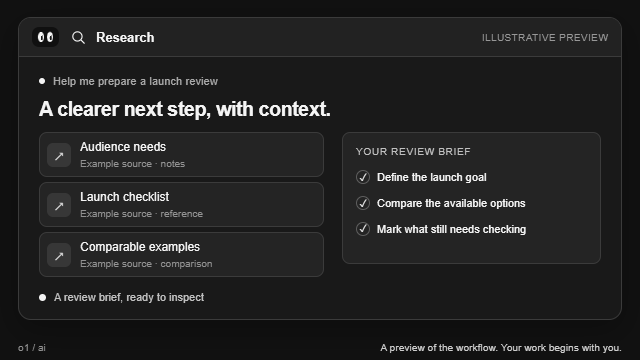
Turn a brief into a site draft and preview it. Review the work before publishing.
Explore building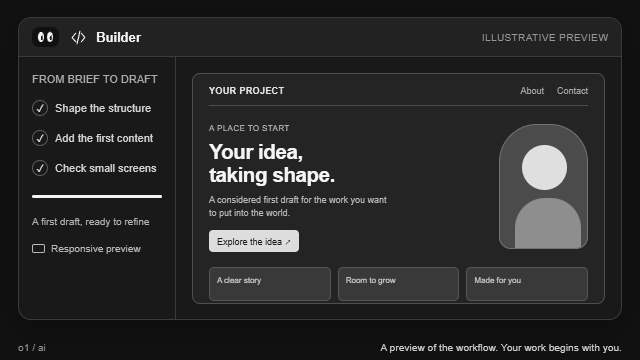
Bring your video and describe the cut. Inspect the result when your editing job is ready.
Explore video editing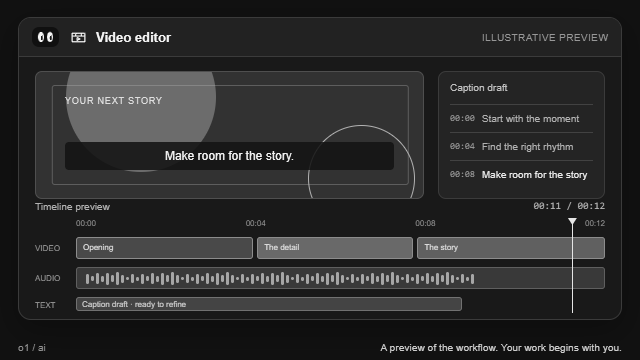
Prepare a task in your selected Chrome tab. Review proposed actions before they run.
Explore browser tasks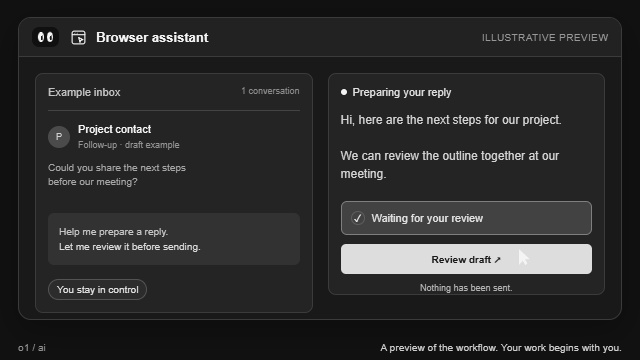
02 / CONNECTED WORKSPACE
Bring the apps and context you choose. Use connected tools, MCP servers, and reusable skills to move your work forward.
CONTEXT, WHERE YOU WORK
Connect supported services such as Notion, Linear, GitHub, Stripe, and Supabase. Choose which tools o1 can use with each connection.
EXTEND WHAT O1 CAN DO
MCP connects o1 to tools from compatible services. Add a public HTTPS MCP server and choose the tools to enable. Research with sources, manage tasks, create images, and prepare drafts in the same workspace.
MAKE YOUR WAY OF WORKING REUSABLE
Turn your instructions into a custom agent with the tools you choose. Set a schedule, or save a reviewed browser workflow for your next task. These are reusable instructions and workflows, with action review each time.
 Connections depend on provider setup and your permissions. You review changes before they run.
04 / KNOW WHAT COMES NEXT
The demo, the signed-in workspace, and connected actions have different capabilities.
Preview the chat and planning workspace, then explore the example walkthroughs. Live AI replies require a verified account. The public preview does not run web research, edit files, render videos, or control Chrome.
Try the demoSign in with a verified account to use live AI. Tools, uploads, builds, and renders depend on availability, setup, and account limits.
Create an accountA plan or a queued job is a starting point. Check sources, previews, completed edits, and browser outcomes before moving on.
Read the workflow guides05 / BEFORE YOU START
Understand the workflow, then bring your own task.
Talk to usYou can explore the example walkthroughs and demo preview before creating an account. Live AI replies require a verified account. Current web research also depends on the enabled tools in your signed-in workspace.
The public demo previews the chat and planning workspace. To generate files, inspect a website preview, and publish, sign in with a verified account and open Build.
Include the audience, purpose, pages, visual references, required interactions, available assets, and how you will check success. Explain which content is sample and which services need a real connection.
The workspace accepts MP4, MOV, and WebM video files between 1 KB and 50 MB. Availability also depends on the editing worker and your account's upload limits.
Browser control uses its separate Chrome action flow. A chat answer, web search, or pasted URL does not mean a tab was opened or changed.
A BETTER FIRST REQUEST
A useful brief names the outcome, includes the context, and explains how you want to review the work.
“Compare two portfolio structures” is easier to review than “make my business better”. Say who the result is for.
Include the information, source file, budget, deadline, format, or selected tab that changes the answer.
Ask for links, a preview, an edit request, or an action proposal. Say what needs your approval before proceeding.
GUIDES / PROMPTS / WORKED EXAMPLES
Read a practical guide, adapt a template, and check the illustrative output before bringing your own task to o1.
Compare public competitor information, keep source claims separate from conclusions, and review what remains unknown.
Competitor research guideTurn a client brief into a draft plan, or give the browser assistant a bounded request for the page you choose to share.
From brief to project planName the decision, constraints, sources, and review criteria before asking for an answer.
Research brief templateYOUR NEXT MOVE
Start with a question, a brief, or a piece of work. See what you can move forward with o1.