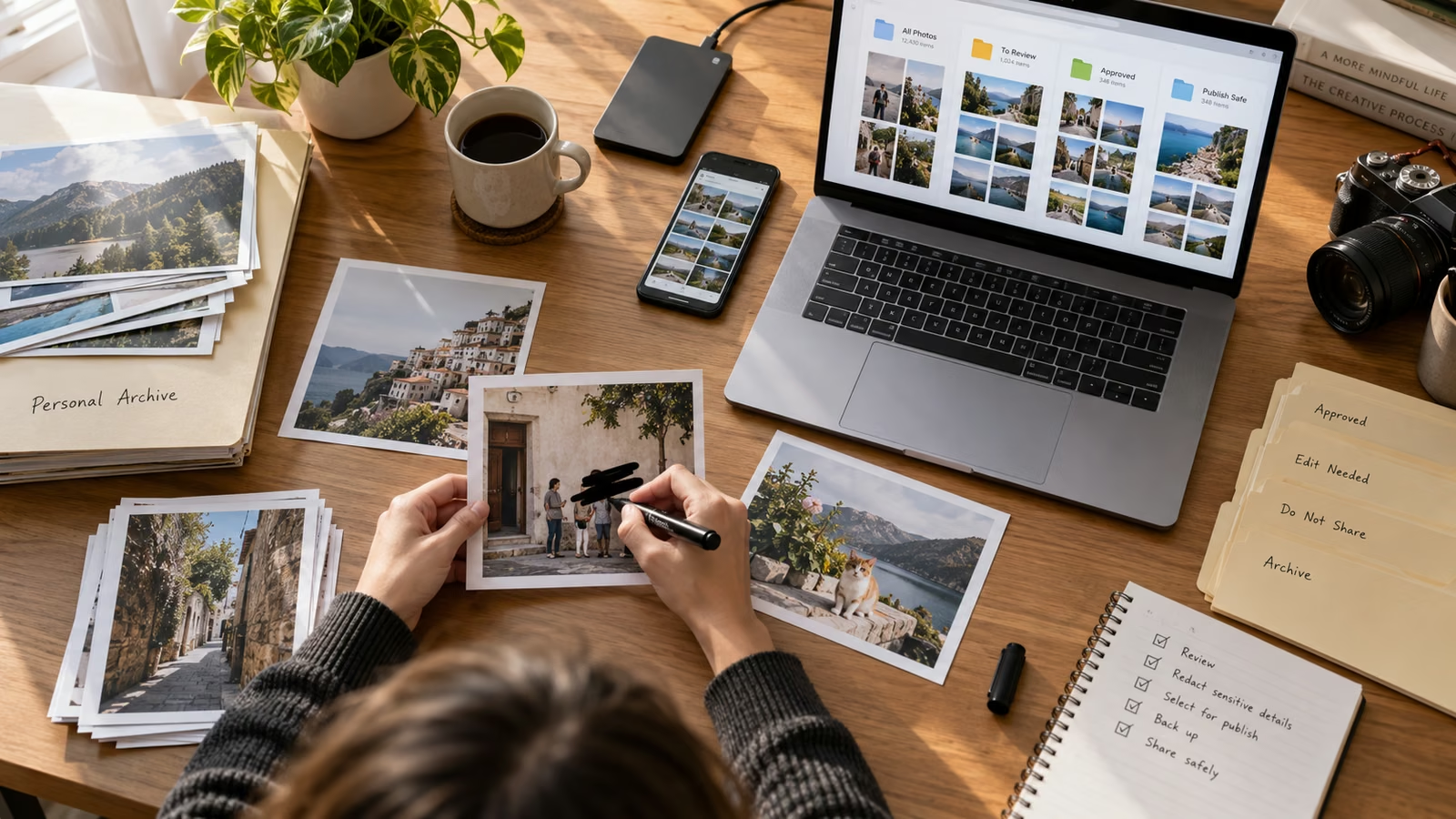
A summer photo library can contain a campaign, a family archive, receipts, license plates, unreleased products, and accidental faces in the same scroll. The publishing problem is not finding the prettiest image. It is separating source, edit, privacy, rights, and approved export before one tap makes the wrong file public.
Google's September 24 post, 5 Google Photos updates to make the most of summer memories, describes prompt-based photo help through Gemini Spark for eligible U.S. Google AI Pro and Ultra subscribers, Wardrobe in selected countries, global Android Moods, Remix templates in selected countries for adults, and an upgraded Android markup tool with a redact pen. The rollout notes are specific. Do not describe every feature as global or available on every account.
Google's earlier transparency post, More transparency for AI edits in Google Photos, says Photos can surface information when images were edited with Google AI and uses IPTC metadata for generative edits and some composite features. Metadata is useful provenance, but a creator still needs a human record of consent, rights, and what the final image claims.
Growit o1 is an expressive pocket AI device in development. Its current Sight workflow is an owner-triggered connected beta that requires a compatible connected service after setup. Final capabilities, supported services, pricing, and availability will be announced before sales open. In this guide, o1 is a deliberate review prompt rather than an autonomous publisher, account operator, or source of guaranteed performance.
Preserve the untouched source, create a review copy, remove sensitive detail, and publish only from an approved export folder.
Use four folders with one-way movement
Create a simple artifact that prevents accidental publishing.
| Folder | Purpose | Publishing rule |
|---|---|---|
| Source archive | Untouched originals and capture context | Never publish directly |
| To review | Candidate images and ownership notes | No external sharing |
| Approved edits | Rights and privacy checks complete | Still requires destination preview |
| Publish safe | Final crop, alt text, disclosure, and filename | Only source for upload |
Copy files forward instead of moving the only original. Keep a backup outside the active edit workflow when the material matters to a client or archive.
Review privacy before visual quality
Scan the whole frame at 100 percent. Look for faces, children, screens, badges, mail, location clues, license plates, reflections, calendar details, and unreleased products. Decide whether the image should be cropped, redacted, withheld, or cleared with the person involved.
Google's upgraded markup tool can help obscure sensitive detail on supported Android devices, but verify the exported pixels. A black stroke that remains editable, an incomplete blur, or a thumbnail generated from the original can defeat the intent. Reopen the shared or exported version and zoom in.
Keep AI edits separate from documentary truth
Moods and Remix templates can turn a memory into a stylized asset. Use them when the destination welcomes interpretation. Do not use a transformed image as evidence of a real product result, event, place, or endorsement without clear context.
Record the source filename, tool, edit description, date, and reviewer. Preserve metadata through export where the workflow supports it, but do not assume every platform retains it. Write a plain disclosure when a reasonable viewer could mistake a material AI change for an authentic event or object.
Use the Growit description optimizer to draft that context, then compare the sentence with the edit record. Review what o1 can do before using an owner-triggered visual checkpoint.
Confirm rights and destination fit
An image from a shared album is not automatically licensed for a brand post. Identify the photographer, people shown, artwork, logos, private property, and music or video frames embedded in the asset. Save permission or contract references with the approved copy.
Prepare the exact crop and dimensions for the destination. Write descriptive alt text that explains the useful visual information without stuffing keywords or exposing private details. Check the image at thumbnail size and in a dark and light interface when relevant.
Audit prompt-based curation
If an eligible account uses Gemini Spark to select or edit photos, treat the result as a shortlist. Verify that the chosen images match the request, exclude private material, and preserve the intended people and events. Do not upload client or personal material to a connected workflow without authority and an understanding of the current data controls.
Prompt-based selection can miss the quiet reason an image should remain private. A person may be visible only in a reflection; a sign may expose a location; an earlier frame may have been approved while a similar one was not.
Publish from a clean release package
Name the final file clearly, reopen it, and confirm dimensions, color, compression, redaction, metadata, disclosure, alt text, and destination preview. Add the live URL and publication time to the record. If a correction is needed, create a new version rather than silently losing the history.
A publish-safe library is valuable because it narrows choice. The team stops asking which of 12,000 images might work and starts choosing among a handful that are truthful, cleared, accessible, and ready for the actual surface.