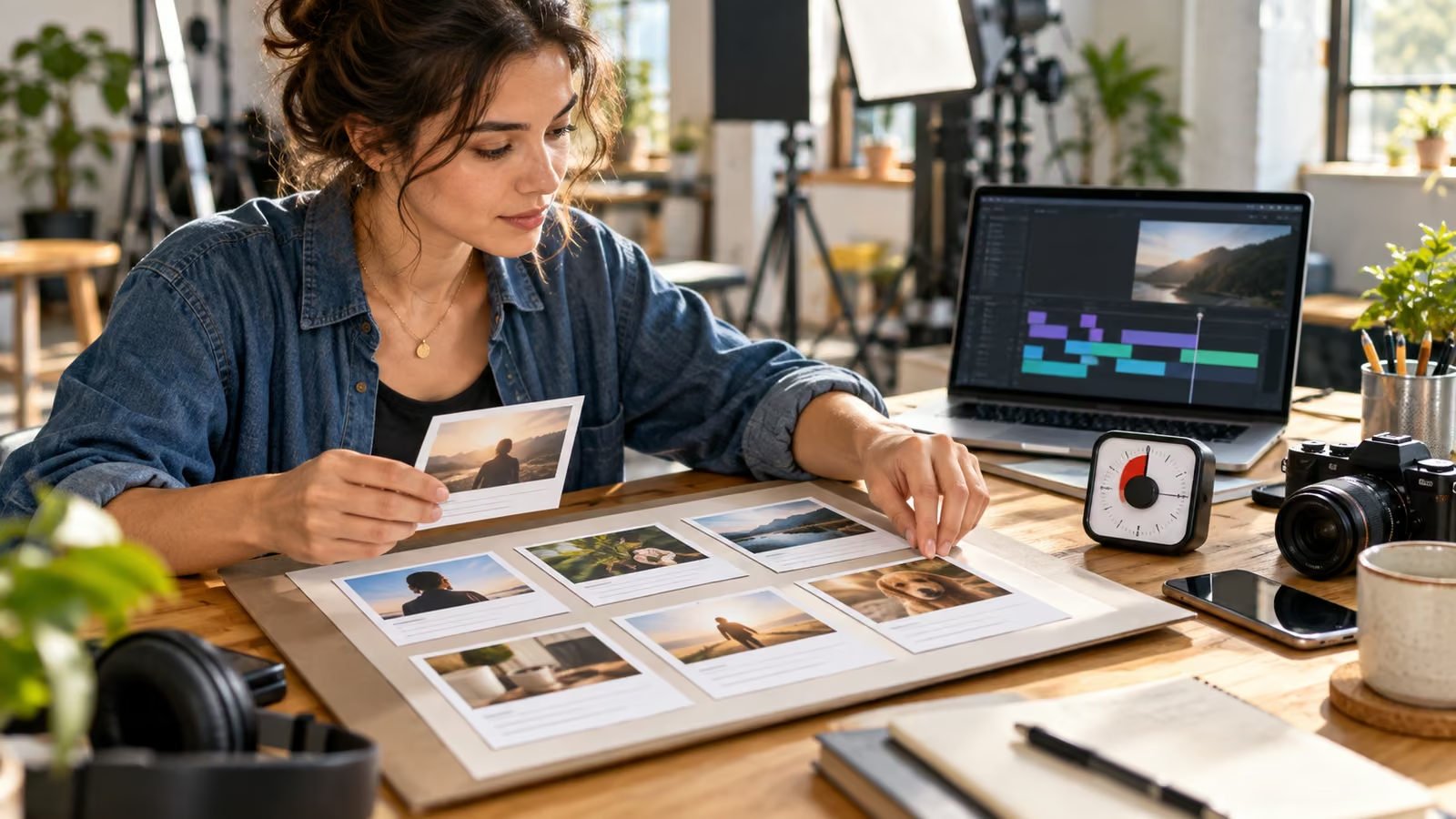
At 9:00, a maker has three phone photos of a new ceramic mug and no launch video. At 9:30, they can have a reviewed six-scene draft: a real product opening, two generated atmosphere clips, concise on-screen copy, music, and an export ready for a platform-specific check. The speed comes from deciding the story before spending a generation, not from asking AI to invent the entire campaign.
Google's September 23 Gemini Omni in Google Vids announcement says anyone with a Google or Google Workspace account can generate video at no cost with Gemini Omni 1.1 Flash in Vids. It highlights exact scene durations, scene extension with continuity, 1080p generation or upscaling, templates, and SynthID digital watermarks on generated clips. Start at vids.new on a desktop and choose "Create AI videos."
Free does not mean unlimited. Google's current Gemini feature availability table says a personal Google Account receives 50 credits per month; AI video clips and preset avatars share a limit of six generations, while "Help me create" costs five credits per use and voiceover or image actions cost one credit each. Limits and continuing feature availability can change. Work or school administrators can disable Vids or generative features, and many AI features remain English-only. Check the table for the account you will actually use before production.
Growit o1 is an expressive pocket AI device in development. Its current Sight workflow is an owner-triggered connected beta that requires a compatible connected service after setup. Final capabilities, supported services, pricing, and availability will be announced before sales open. This workflow uses o1 only for a deliberate review of an owner-selected frame. It does not claim o1 can access a Vids project, compare scripts and exports, control Google Vids, publish, or verify every claim.
In 30 minutes, build one clear promise across six scenes and spend no more than two AI video generations on the first draft.
Pin the six-scene artifact first
Write this card before opening the generator. It protects scarce generations and keeps the video about the product.
| Scene | Job | Source | Target time |
|---|---|---|---|
| 1 | Show the real product and name the outcome | Original photo or recording | 3 seconds |
| 2 | Establish a mood or problem | Omni-generated clip | 4 seconds |
| 3 | Demonstrate one real feature | Original video | 5 seconds |
| 4 | Make one supported claim | Text plus original evidence | 4 seconds |
| 5 | Add a transition or use context | Omni-generated clip | 4 seconds |
| 6 | Give one next action | Original product image and text | 3 seconds |
For the mug, the promise might be "a comfortable handmade cup for a slower morning." Do not ask Omni to fabricate a customer testimonial, a kiln process you did not film, or a performance claim you cannot support.
Minute 0–5: choose one audience and action
Name the viewer and what they should do next. A local buyer may need opening hours; an online shopper may need a product-page visit; a newsletter subscriber may need a launch date. Choose one. Use the Growit hook analyzer to pressure-test the first line, then rewrite it in language the audience would use.
Collect only approved inputs: product photos, logo, verified price, current offer, rights-cleared music direction, and the destination URL. Avoid uploading confidential client assets or personal data without permission.
Minute 5–10: prompt two bounded clips
Open Vids on desktop, select "Create AI videos," and describe a single shot with subject, action, setting, camera, light, duration, and exclusions. For example: "Four-second 16:9 close shot of morning light moving across a simple oak breakfast table, slow push-in, warm natural color, no people, no mug, no logos, no text."
Generate the atmosphere and transition clips separately. Google's announcement says Omni 1.1 can set specific durations and extend scenes while maintaining visual context. Inspect every result for distorted objects, unintended text, implausible motion, and brand confusion. A generation that looks polished can still be wrong.
Minute 10–18: assemble with real evidence
Put the original product footage at the opening and demonstration points. Add the generated clips as connective material, not proof of what the product does. Keep copy to one idea per scene and make the claim qualification readable.
Google also offers templates, upload-and-create, recording, and a blank timeline. The Google Vids getting-started guide explains these routes. Choose the simplest route that preserves control. A 30-minute creator workflow is a production sprint, not a claim that Vids itself limits the finished video to 30 minutes; the Vids limits guide says editable projects must be 30 minutes or shorter.
Minute 18–23: edit rhythm and sound
Trim every pause that does not add meaning. Align scene changes with the spoken phrase or musical beat, but do not hide qualifications behind a rapid cut. Use generated voiceover only if the selected account supports it and the voice suits the context. Google's availability table varies limits and features by account and plan.
If you record a person or use their voice, obtain permission. Confirm music, font, photo, and logo rights. The SynthID watermark on Omni-generated clips supports transparency, but it does not grant rights or verify the truth of the surrounding claims.
Minute 23–27: run the truth and continuity pass
Check product shape, color, packaging, shadows, text, dates, prices, and call to action across all six scenes. Label the production record with which clips were generated. Decide whether the destination platform requires a visible AI disclosure in addition to embedded provenance.
For one critical frame, the owner can deliberately start o1's connected Sight beta through a compatible configured service and ask for a description of visible text or layout. Treat the response as a secondary observation and verify it against the frame yourself. Review what o1 can do and connections and costs before using an optional connected experience.
Minute 27–30: export and inspect the destination
Export, reopen the actual file, and watch from beginning to end. Confirm resolution, audio, captions, safe zones, disclosure, and link text. Then preview it in the destination's real composer because controls can cover essential copy. Do not publish a draft solely because the generation completed.
Save the six-scene card, prompts, source list, usage rights, and final export together. Use the Growit description optimizer for the accompanying post, then verify every product fact manually. On the next sprint, keep the same structure and change the audience or promise rather than regenerating every scene. That is how a free monthly allowance becomes a repeatable creator system instead of six expensive experiments.