
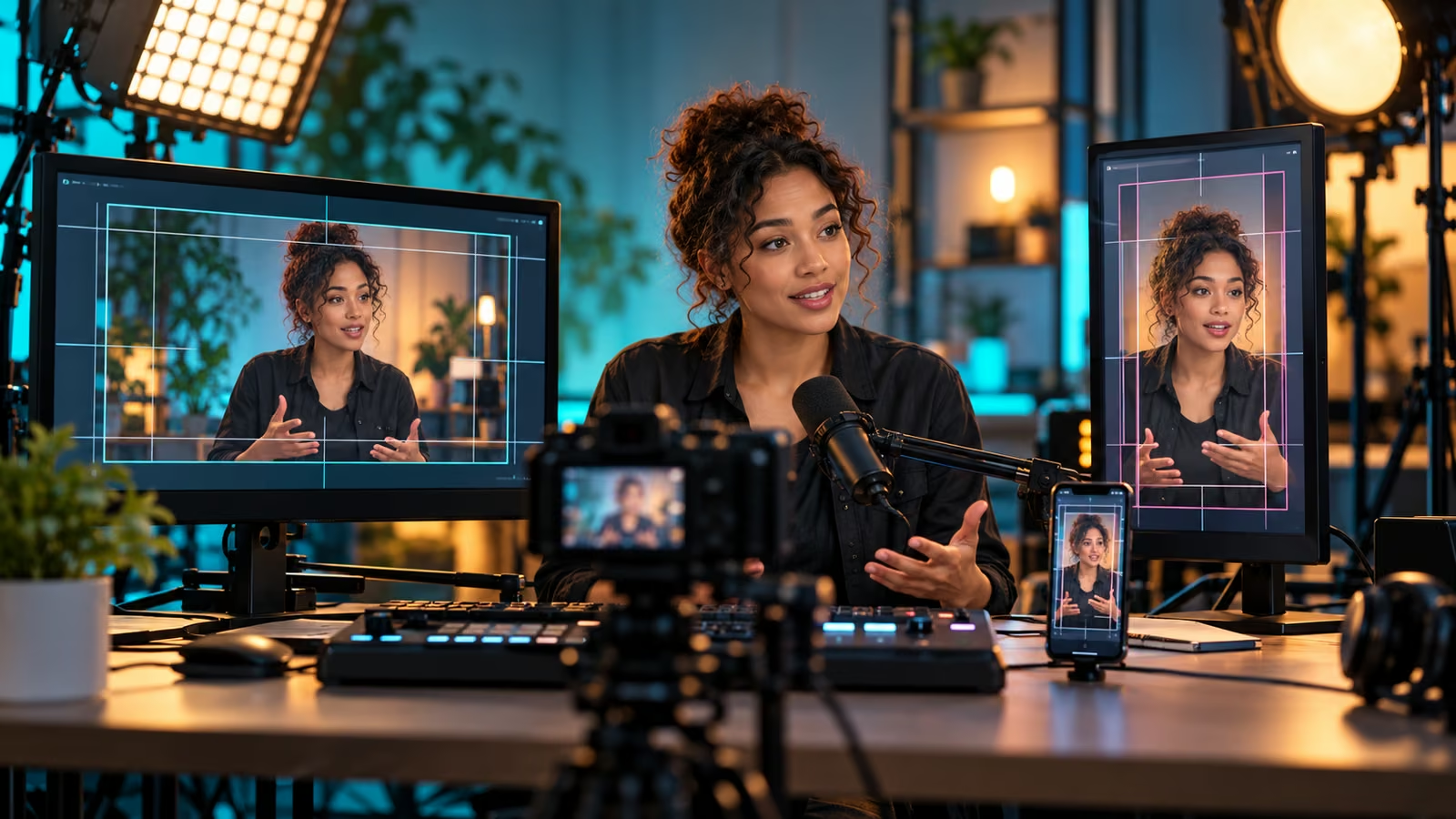
A streamer looks perfect in the desktop preview, then disappears behind chat in the vertical crop. The sponsor panel is cut in half, the guest sits outside the mobile frame, and the game objective is unreadable. Dual-format streaming only works when the production is designed for both views before the audience arrives.
Twitch's May recap, Everything We Announced at TwitchCon Rotterdam 2026, describes Dual Format as simultaneous horizontal and vertical presentation. Twitch's official Enhanced Broadcasting with Multiple Encodes guide explains eligibility, supported broadcasting software, multiple qualities, automatic configuration, and the Enhanced Broadcasting requirement for Dual Format.
Growit o1 is an expressive pocket AI device in development. Its current Sight workflow is an owner-triggered connected beta that requires a compatible connected service after setup. Final capabilities, supported services, pricing, and availability will be announced before sales open. In this guide, o1 is a deliberate review prompt rather than an autonomous publisher, account operator, or source of guaranteed performance.
Design one show with two valid frames. Do not treat the vertical view as an automatic crop that can be checked after the stream begins.
Draw the shared safe zone
| Element | Placement rule |
|---|---|
| Face and hands | Visible in both frames during normal movement |
| Primary action | Centered or switched intentionally for each scene |
| Captions | Large, high-contrast, and clear of interface overlays |
| Sponsor mark | Approved size with a vertical and horizontal position |
| Chat prompts | Spoken aloud and not dependent on tiny on-screen text |
| Guest | Separate framing check before joining live |
Place tape marks on the floor and preview both outputs at the same time. Move around, lean toward chat, demonstrate a product, and test the widest gesture. A static seated screenshot will miss the crop failure that happens during the actual show.
Confirm technical eligibility and headroom
Check the Creator Dashboard for Dual Format and Enhanced Broadcasting eligibility. Twitch says Enhanced Broadcasting can send multiple encodes from supported broadcast software and can use automatic configuration based on the setup. Follow the current software instructions shown for the account.
Run an unlisted or low-risk rehearsal if available. Measure upload stability, encoder load, dropped frames, audio sync, and thermal performance over the planned show length. Leave headroom for a guest call, browser source, recording, or scene change. Do not assume a fast speed test guarantees a stable live route.
Use Growit's upload-time planner to organize the rehearsal window, then rely on Twitch and broadcast-software diagnostics for the technical decision. Review o1 creator guides before using an owner-triggered connected checkpoint with stream keys or private show assets.
Rebuild overlays for two frames
List every overlay: alerts, captions, scoreboards, lower thirds, QR codes, sponsor marks, chat boxes, countdowns, and donation goals. Give each a horizontal and vertical position or remove it from one layout. Keep essential information out of corners where platform controls may appear.
Test at actual phone size and from couch distance on a television or desktop monitor. If a URL or code cannot be read comfortably, speak the destination and place it in the channel description instead.
Rehearse moderation and scene changes
Moderators need to know which version viewers are describing when they report a layout problem. Create short labels such as “vertical face crop” or “horizontal game cut.” Define who can call for a scene switch and who watches audio, dropped frames, chat, and sponsor compliance.
For guests, collect framing and audio consent before live. Explain that vertical viewers may see a tighter crop. Keep private windows, notifications, stream keys, and backstage chat outside every captured scene.
Keep a rollback scene
Build one simple horizontal-safe scene with camera, clean audio, and minimal overlays. Document how to disable the new format or return to the stable profile if encodes fail, bandwidth drops, or a critical overlay breaks. Practice the switch without ending the rehearsal.
After the stream, compare viewer experience, clip quality, chat reports, and technical logs by format where data is available. Change one layout rule at a time rather than rebuilding the show from one session.
A successful safe-zone test gives both audiences a complete story. The vertical view feels intentional, the horizontal view keeps its context, and the producer can return to a stable scene before a crop problem becomes the show.