
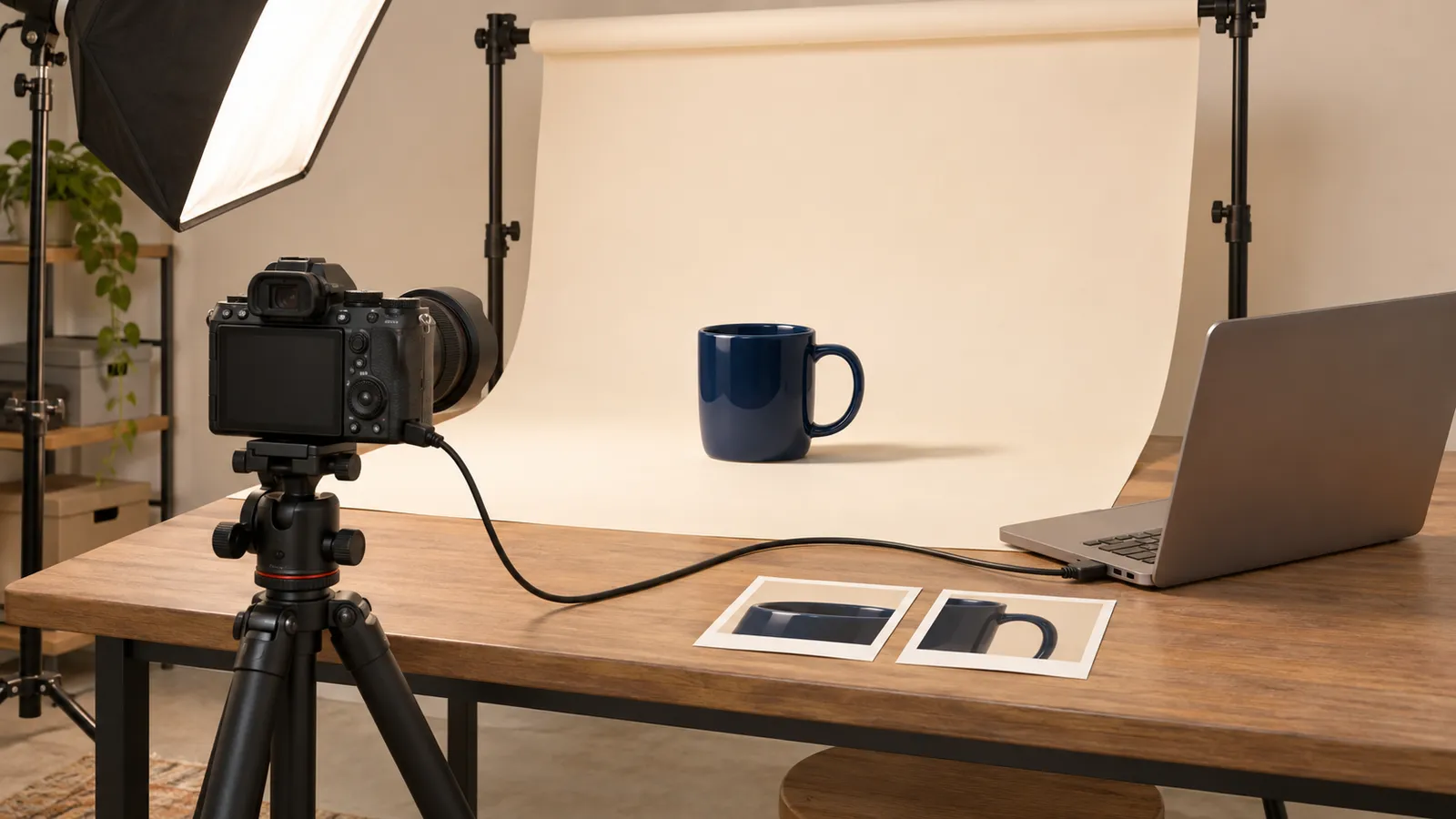
Use Lightroom desktop's tethered capture to check both intended crops while the product, camera, and lights are still in place. Start with one test exposure. Review the saved photo against a wide hero and a square listing before asking the next setup to match it.
In this fictional shoot, ceramicist Sora turns a navy mug until the handle clears its rim. The web designer needs room for a headline on the left. The shop card needs a centered mug with the handle fully visible. A capture that solves both jobs earns a place on the shortlist.
| Shot card | Filled fictional decision | What Sora checks |
|---|---|---|
| Product | Navy glazed mug, handle facing right | Handle and rim read as separate shapes |
| Wide homepage hero | 16:9 crop, mug on the right | Left third stays clear enough for a headline |
| Square listing | 1:1 crop, mug centered | Handle and foot both fit with breathing room |
| First comparison | Same exposure reviewed in both crops | Centering the square keeps the whole handle |
| Keep or reshoot | Save a dedicated square frame if the shared exposure crowds the edge | A separate crop gets its own shot name |
| Review owner | Sora checks finish and shape, designer checks the hero slot | Each person opens the exported file they approve |
Adobe's November Lightroom desktop 10.0 release guide lists tethered shooting with Live View and overlays. This exercise uses those controls to check what both page placements need from a single set.
Check your exact camera before setting the lights
Search Adobe's tethering compatibility table for the precise model name and the minimum version in the desktop column. Write the camera model, Lightroom version, and cable used on the shot card. If your model is absent, Adobe directs you to the camera manufacturer for support information. Keep the test specific to the camera, lens, and shooting mode you intend to use because the controls can vary.
Connect the camera by USB. Choose Tethered capture in the connection dialog, name the session, and choose an album if you want the captures together. Begin the session and make one test exposure. Open it from Lightroom's filmstrip and inspect the detail you intend to sell, such as the small variation in the glaze. A connected-camera dialog confirms detection. Reviewing a captured file confirms the part of the workflow the delivery depends on.
Put the page layout into the preview
For the wide crop, sketch the intended headline area on a simple overlay image. Leave the rest open so the product remains easy to judge. The designer can supply the placement boundary without sending the actual page design. Sora uses that boundary to reserve space while she chooses the mug's position.
Adobe's tethered capture instructions show where to enable Live View from the Camera panel. Use Overlay > Browse to select your placement image. Set the Aspect ratio preview to 16:9 for the hero, then switch to 1:1 for the listing. Remove the wide overlay before judging the square or use a second overlay drawn for that format. Verify final crop and dimensions on the saved exposure and export.
Take two frames that answer different questions
Make the first frame a product check. Zoom in and inspect the rim, handle, and visible glaze. If a reflection hides a genuine feature, adjust the light or turn the mug a few degrees. Keep a reference frame from before the move so the change is easy to judge.
Make the second frame a layout check. Try the wide placement and square crop with that same setup. If one shape feels cramped, capture a dedicated variation while the lights and product are ready. Name the variation for its destination so the designer can find it without reconstructing the sequence.
Keep the comparison steady across a small set
Once the first product looks right, save a reference frame for the next mug. Check the scale, placement, and background at the same crop before making a new creative decision. If a taller product needs different framing, label the change in the shot list and give it enough room. Turn Auto Advance off while comparing the same reference across several captures. Turn it on when you want the most recent exposure to appear automatically.
Lightroom's tethered session can apply a preset to incoming images. Sora starts her test with a neutral baseline to judge the material, then tries a consistent treatment once the exposure and reflection look right. Compare any treatment with the physical item before committing it to a product listing.
Keep shooting if the cable drops
Pause the tethered session and identify the last file that actually arrived. Switch to camera storage if the connection stays unreliable. Note where the second sequence begins, keep the original filenames during import, and compare the first recovered exposure with the reference frame.
Use one product and one successful capture to confirm the recovered workflow before repeating a full series. An extra review frame is cheap while the scene still exists. After teardown, a missing view may mean rebuilding the setup.
Open the files your collaborators will use
Export the wide and square selections with distinct filenames and inspect each at its intended size. Check the mug's color and edges, the headline space, and the final dimensions. Give the designer the approved wide file and retain the source exposure with the shot notes so a later crop is easy to trace.
Adapt the shot card with the o1 guides and o1 AI workspace. The current o1 specifications describe hardware in development. Use Lightroom on a supported setup for camera control and capture.
Before your next tabletop shoot, write down the two crops you owe, then make and inspect one tethered frame in both.