
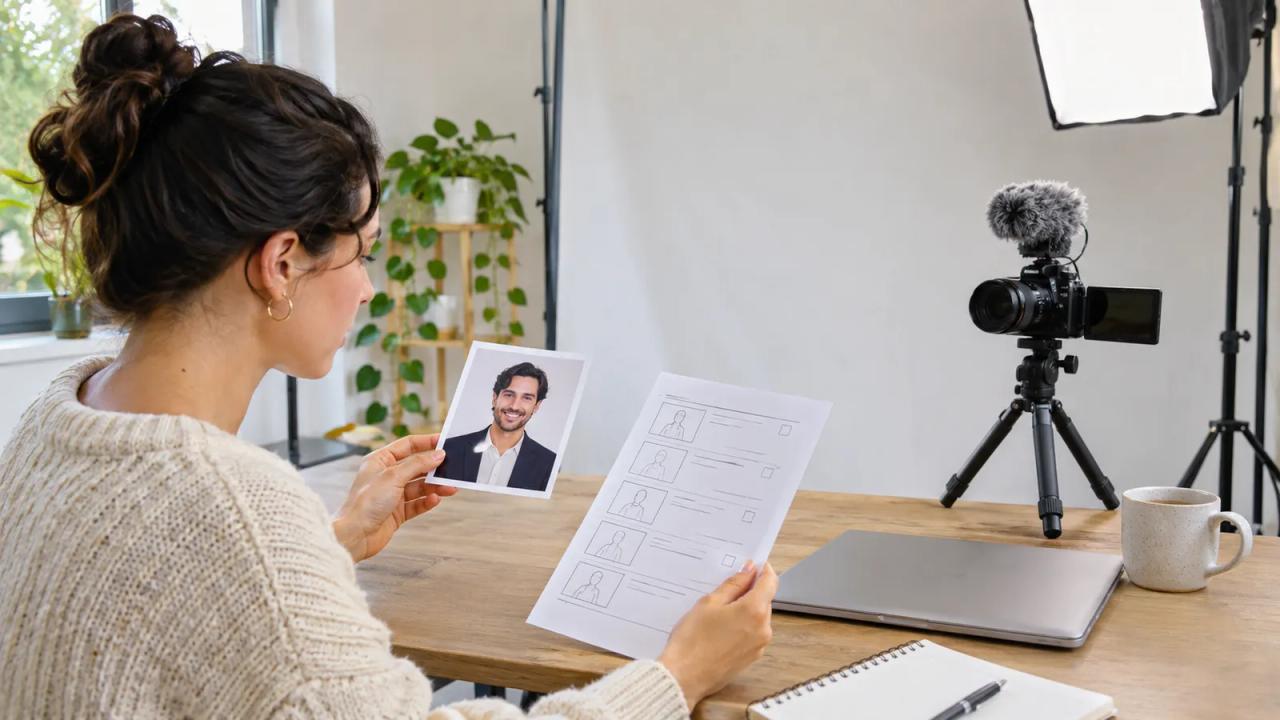
Keep a publishable version of the video that does not depend on uploading an image for a Google Vids avatar. Preserve the script, map each scene to material you can actually produce, and verify the final cut before committing to a release. An announced feature and a control available in your account are different production dependencies.
Mika, the fictional creator of Bench Window, is planning a short introduction to a repair workshop. A proposed avatar segment was meant to introduce three visible tools. The invented plan below keeps the lesson understandable if that proposed segment cannot be produced.
| Scene decision | Filled fictional fallback | Acceptance check |
|---|---|---|
| Opening explanation | Mika records a short on-camera introduction | The actual speaker identifies the workshop topic |
| Tool names | Film the three owned tools on the bench | Spoken names match the objects shown |
| Demonstration | Use the creator's own close-up footage | The action remains clear without an avatar |
| Portrait reference | Keep an approved planning image separately | Do not imply that an avatar was generated from it |
| Narration | Record the approved script in a quiet room | Compare the spoken wording with the final cut |
| Release decision | Publish the reviewed footage version if complete | No missing feature is presented as a completed test |
Google's November 2 image-upload announcement for Vids was updated November 3 to say the rollout is paused and revised timing is to be determined. The official launch page still carries that pause when checked on November 9. Its documentation is useful planning material, but no resumption date is established in that update.
Mark the dependency that can stop the release
Write down which scene requires the specific image-upload feature. Mika's opening was the only proposed avatar scene; the tool demonstration already had a separate filming plan. Identifying that boundary prevents one unavailable control from becoming an unexplained problem across the whole project.
Name the feature precisely in the production note. The update concerns uploading an image to create a custom avatar. It is not a statement that every Vids feature, every preset avatar, or every video-editing route has stopped working.
Also identify the decision date for the release. Mika can choose a supported alternative before the scheduled edit rather than repeatedly postponing the whole video while waiting for an unspecified rollout change. That date is her production choice, not a prediction about Google's schedule.
Separate documentation from observed account access
The Google Vids avatar help article describes avatar workflows and eligible-plan limits. Its procedural instructions are useful reference material, but they do not overturn the dated announcement's pause or prove that a particular account has the image-upload control.
Record what the team actually observes in its permitted environment. If a needed control is absent, describe that absence without inventing a cause. Do not claim that upgrading a plan, changing a browser, or repeating a request will resolve an announced rollout pause.
Keep the source date with the planning note. A later official update may change the decision, but the current release should use the capability available when the team is preparing it. This guide reports no hands-on Vids account test.
Preserve the message independently of the presenter
Review the script before replacing the planned visual. Mika's useful message is that three tools serve different jobs in a repair workshop. That explanation should remain understandable whether it is spoken on camera or placed over close-up footage.
Write the names of the actual objects into the narration. Remove references that depend on a proposed avatar gesture or an unmade graphic. “Use the narrow brush for this edge” is easier to match to a real shot when the brush and edge are visible.
Keep any portrait reference in a clearly named planning folder. An approved reference image is not evidence that a generated presenter exists or that the person approved every possible use of their likeness. Give the production team only the material needed for the chosen version.
Build the fallback from material you can inspect
Make a short shot list around the approved message. Mika needs an introduction, three tool close-ups, a visible example of the action, and a closing instruction. She can review those concrete pieces without promising that an unavailable feature will supply them later.
Record real footage with an authorized participant and the intended objects. Check focus, framing, audible names, and whether the action remains inside the crop. If a shot is missing, decide whether to record it or narrow the explanation.
A still image with recorded narration can also serve a bounded explanatory job when the creator has suitable material. Label the work according to what it actually contains. Do not describe a still-and-voice sequence as a tested avatar performance, or invent an interface recording to fill the gap.
Compare the alternative with the original purpose
Review the fallback against the viewer's task. Can someone identify the tools, understand the demonstrated action, and follow the closing instruction? A different presenter format does not automatically make those goals better or worse.
Read the narration against the finished picture. A replacement introduction may change the timing of a reference later in the edit. Correct those dependencies before approving captions and the final export.
Check that the publication wording matches the version you made. A title or description promising a review of an image-generated avatar would be misleading if the published video contains only real footage. Mika's example remains a proposed workshop introduction, not an account demonstration or a claim about avatar quality.
Revisit the plan only when the evidence changes
Keep the approved script, source update, observed account status, chosen alternative, and release note together. If Google later announces resumed rollout, make a separate trial with a clear question and review it before replacing an already acceptable cut.
An update does not require remaking a useful finished video. Decide whether the new capability serves the project, and preserve the existing version while evaluating that choice. This exercise establishes no production-time saving or audience result.
For adapting the written planning pattern in Growit, see the o1 guides, current specifications, and o1 AI workspace. The physical o1 device remains in development. This article establishes no Vids connection, avatar creation, video import, or automated publishing through o1.
Choose one feature-dependent scene today. Write its message without the feature, make a supported alternative, and approve the cut you can actually review.