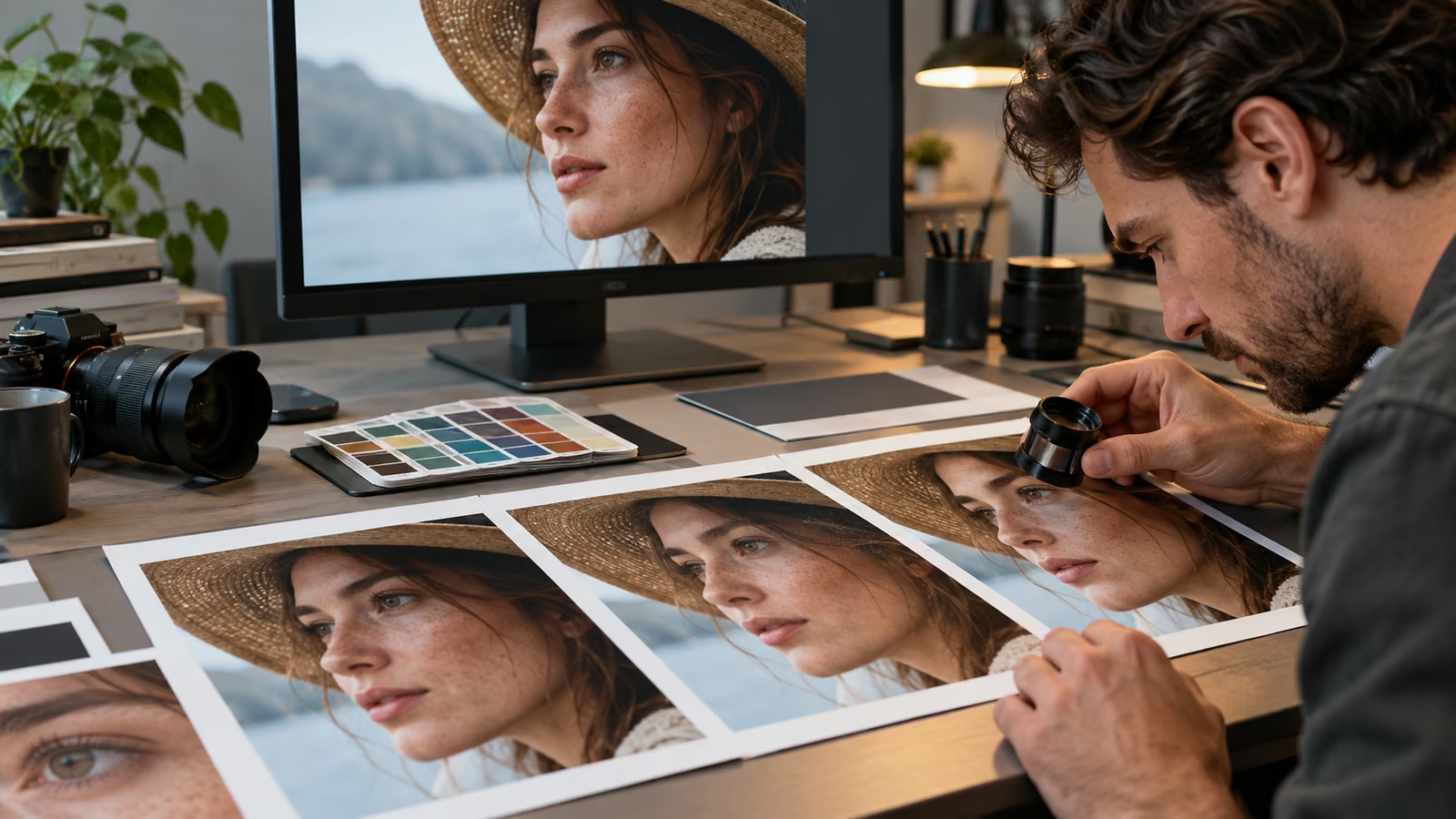
A creator has one 1,200-pixel product photo and three destinations: a sharp web hero, a large event screen, and a stylized campaign poster. The right Photoshop upscale is not one winner for all three. Firefly Upscaler is positioned for restoring low-resolution images, Topaz Gigapixel for preserving existing detail, and Topaz Bloom for adding creative detail. Run the same source through the relevant models, then approve the result that fits the job.
Adobe's current Generative Upscale documentation says Photoshop offers 2x and 4x output. It lists Firefly Upscaler at up to 6,144 by 6,144 pixels, Topaz Gigapixel at up to 56 megapixels for premium subscribers, and Topaz Bloom at up to 9 megapixels for premium subscribers. The tool creates the upscale in a new document. Availability, plan requirements, limits, and credit use can change, so verify the dialog and current plan documentation before a production run.
Growit o1 is an expressive pocket AI device in development. One planned direction is an owner-triggered connected Sight beta that requires a compatible connected service after setup. Final production details and supported services remain unannounced. This guide uses o1 only as a possible owner-invoked review checkpoint; it does not claim o1 can access Photoshop, Adobe Firefly, Topaz products, files, accounts, or exports.
The useful comparison is a contact sheet with the same source, scale, crop, destination, and review criteria—not three attractive images made under different conditions.
Build the test sheet before choosing a model
Use one representative crop that contains the details most likely to fail. A product image might include a face, small label text, fabric, hair, a hard edge, and a smooth gradient. Keep the untouched source beside every result.
| Test row | Firefly Upscaler | Topaz Gigapixel | Topaz Bloom |
|---|---|---|---|
| Intended job | Restore a low-resolution source | Preserve existing detail at higher resolution | Add creative detail where invention is acceptable |
| Output selected | Record 2x or 4x | Record 2x or 4x | Record 2x or 4x |
| Text and logos | Compare character by character | Compare character by character | Reject invented brand detail |
| Faces and hands | Check identity and anatomy | Check identity and anatomy | Treat changes as creative edits |
| Texture | Look for waxy or repeated areas | Look for false sharpening | Look for plausible but invented texture |
| Destination | Web, screen, print, or crop | Web, screen, print, or crop | Clearly creative campaign asset |
| File and credits | Record actual result | Verify premium access and actual result | Verify premium access and actual result |
The table prevents a vague verdict such as "Topaz looks better." It forces the team to name what survived, what changed, and whether that change is acceptable for the destination.
Protect the original and define the truth boundary
Duplicate the source and record its dimensions, color profile, file type, crop, capture history, and usage rights. If the image depicts a real product, person, document, artwork, or location, list the details that cannot be invented.
Upscaling can improve presentation, but it cannot recover proof that the source never captured. A newly legible label is not reliable if the model reconstructed the letters. A crisp fabric pattern may be visually convincing while differing from the item a customer will receive. Keep the original available for every factual comparison.
Match the model to the assignment
Start Firefly Upscaler when the assignment is restoration within its documented size limit. Start Topaz Gigapixel when preserving existing detail is the stated priority and the account has the required premium access. Use Topaz Bloom only when adding creative detail is compatible with the brief. Adobe's labels describe intended behavior, not a guarantee for a particular image.
Adobe completed its acquisition of Topaz Labs on September 23 and says Topaz technology is available in Firefly and Photoshop. Adobe also says the Topaz brand and standalone products will continue. That business change does not make the model outputs interchangeable or establish that every standalone function is present in Photoshop.
Run one controlled Photoshop pass
Open the duplicate, choose Image, then Generative Upscale, and keep the selected scale consistent. Do not sharpen one candidate, color-grade another, or change the crop before comparison. Save each new document with the model, scale, date, and source version in the filename.
For the product-photo example, first test the 2x output for the web hero. Test 4x only if the event screen or crop actually needs it. More pixels can increase review time and file weight without improving the final viewing experience. Use the Growit thumbnail analyzer for a small-display packaging check, while treating the original-size proof as the authority for image defects.
Inspect at three viewing distances
At 100 percent, inspect halos, ringing, repeated texture, false pores, broken edges, altered jewelry, malformed fingers, and changed letterforms. Fit the full image to the screen and check whether the subject still reads naturally. Finally, preview it at the real destination size and distance.
Put the original and candidate side by side. If a reviewer cannot identify which details were captured and which were synthesized, the asset needs a stronger label or a different treatment. For documentary, catalog, archival, or evidence-led uses, reject a visually pleasing result when it changes material facts.
Record cost, size, and reversibility
Adobe classifies Topaz partner-model upscale features as premium and says credit use can depend on the model and output size. Do not copy an old credit number into a permanent budget. Record what the current interface shows for the account, then log generation count, output dimensions, file size, review time, and any manual repair.
The fastest generation may not be the cheapest finished asset if it creates an hour of label repair. Keep each result in a separate document and make subsequent retouching non-destructive where possible. The source, initial upscale, approved retouch, and export should remain distinguishable.
Put a human approval after the comparison
An owner-triggered o1 vision checkpoint could eventually help a creator revisit a chosen crop or read through a review list when a released workflow supports those inputs. Today, keep the comparison manual and verify every detail yourself. Read what o1 can do and o1 connections and costs before assuming any connected handoff.
Export only after one person signs off on fidelity, rights, disclosure, dimensions, color, and destination preview. For the three-destination example, that may produce two factual upscales and one visibly creative variant rather than one file stretched across every channel. Save the contact sheet with the final assets so the next upscale begins with evidence instead of a favorite model name.