
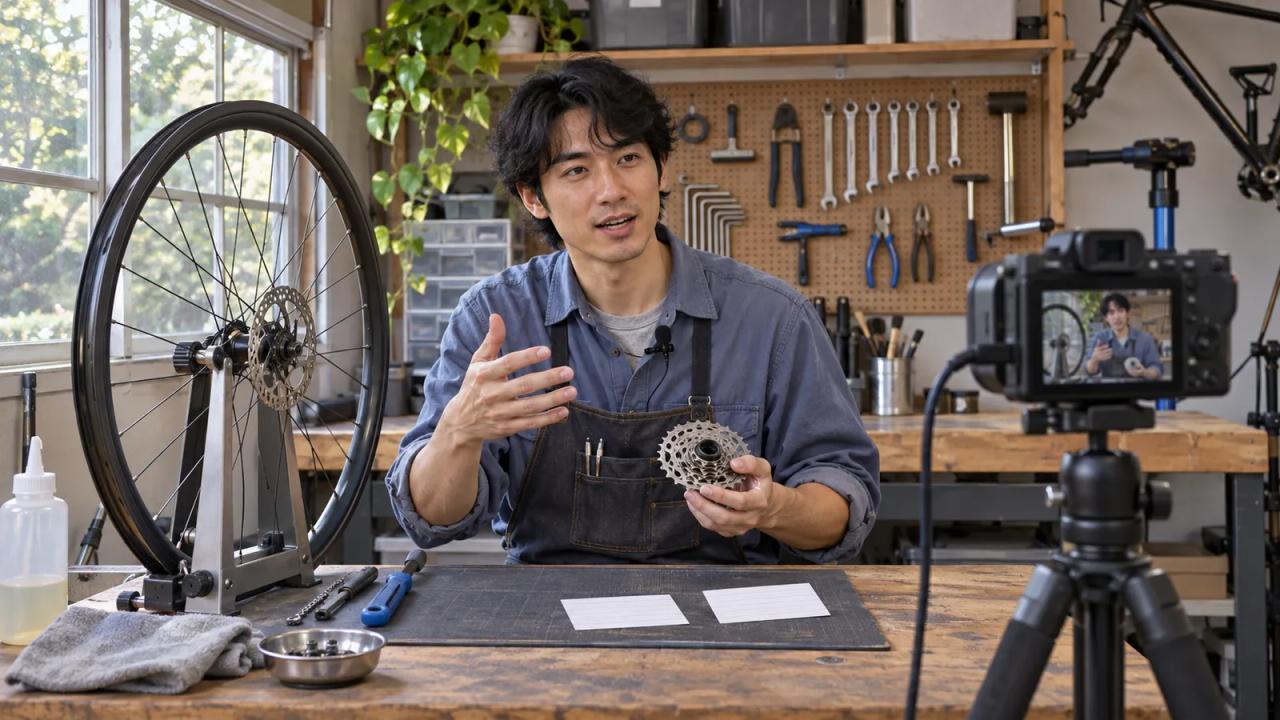
Rehearse a YouTube livestream with a timed run of show, a viewer watching the actual feed, and a short plan for what to do if a shot or connection drops. Try the hardest handoff first, using the same camera angles and sound you expect on the day.
In this fictional workshop, Lin hosts an 18-minute tour of her bicycle cleaning bench. Her remote helper, Eli, will watch on a phone and collect questions. Lin has one wide camera and one overhead view. Their rehearsal tests whether a viewer can see the small brush she holds up while she speaks.
| Elapsed time | Host cue | Viewer check or fallback |
|---|---|---|
| 0:00–2:00 | Wide shot and welcome | Eli confirms speech and picture on the watch page |
| 2:00–5:00 | Move to the overhead view | If the small brush is unreadable, hold it to the wide camera |
| 5:00–9:00 | Show how the tools are laid out | Eli sends a private cue if Lin’s hands cover the tray |
| 9:00–13:00 | Compare the brush sizes | If the overhead view drops, keep the wide shot and describe each brush |
| 13:00–16:00 | Answer two viewer questions | If chat is quiet, use two prepared questions and say where they came from |
| 16:00–18:00 | Repeat the tool list and sign off | Verify the stream ends and check the saved recording |
YouTube’s November 12 announcement schedules a 24-hour Grand Theft Auto VI launch broadcast for November 19 with gameplay, creator podcasts and other segments. A large event makes the handoffs easy to spot. The workshop above uses the same planning question at a smaller scale: what does the viewer need to see when the format or camera changes? YouTube’s launch broadcast announcement
Decide what the audience should see
Write the stream’s promise in one sentence. Lin promises a tour of the tools on her cleaning bench and time to answer questions. That gives her a way to judge what belongs in the opening. The overhead view is useful because the audience can compare the brush sizes.
Put one picture or action beside each beat. Give any detail that must remain visible its own shot and time to read. A viewer arriving late should also be able to tell what part of the demonstration is happening.
Assign each cue to a person
For each change, identify who notices the problem and who acts. Lin handles the cameras and talks through the demonstration. Eli monitors the watch page and relays questions. They use brief private messages so a technical cue does not compete with the host’s narration.
For a solo rehearsal, record the practice and watch it back on the device your audience is likely to use. Set the camera changes where you can reach the controls without turning away during an important explanation. Leave one written cue where you can see it from your normal position.
Test with the movement and sound of the show
Use the actual speech volume, close-up motion and framing you expect. Lin rehearses reaching for the small brush and holding it at the overhead camera while speaking. Eli opens the rehearsal watch page on a phone and marks the time where he loses the brush or the explanation. At the first camera switch, he records three things beside the timestamp: whether the wide shot clears, whether the brush is recognizable on the overhead shot, and whether Lin’s speech continues across the cut.
YouTube recommends testing ahead of the stream with comparable movement and audio. Its encoder guidance also calls for monitoring stream health during the event. Use the guidance for your setup and compare the viewer’s experience with what you see in Live Control Room. YouTube encoder settings guidance
Rehearse the camera and connection fallbacks
First test a missing camera angle while the stream is still connected. Lin stays on the wide view, holds the brush closer to the lens and narrates the point she wanted the overhead shot to show. Eli confirms the audio continues and the object is visible.
A dropped connection requires a different cue. If you run a backup encoder, test the switchover during rehearsal and have the viewer verify what actually plays. A smaller setup can prepare an agreed restart or cancellation message for another channel if the feed is unreachable. Test that handoff with the person who will post it. YouTube streaming tips
Give the audience room to respond
Choose where chat can shape the show. Lin asks viewers which tool they want her to pick up again, then waits long enough for the answer to reach Eli. She also has two prepared questions so the segment has a purpose if nobody responds.
Set a time limit for the questions and reserve the last minute for the planned sign-off. If you cut a replay later, explain enough of the original question that the answer still makes sense without live chat on screen.
Close the rehearsal with an observable decision
Review the same moment from the host’s and viewer’s perspectives. Lin checks that the camera switch happened when she thought it did. If the test has a saved recording, Eli uses it to check whether the brush remains visible through the transition. If they only rehearsed locally, he reviews the local capture and schedules a separate watch-page test before the event. They can keep the overhead view if it passes, or rehearse the wide-camera handoff again.
Draft your own run of show in the browser o1 AI workspace and use the o1 guides to adapt the written checklist. Use your streaming tools to switch cameras and run the broadcast. The physical o1 device remains in development. Current o1 specifications
Pick the one transition your next stream depends on. Rehearse it today and record what the viewer actually saw before you finalize the schedule.