
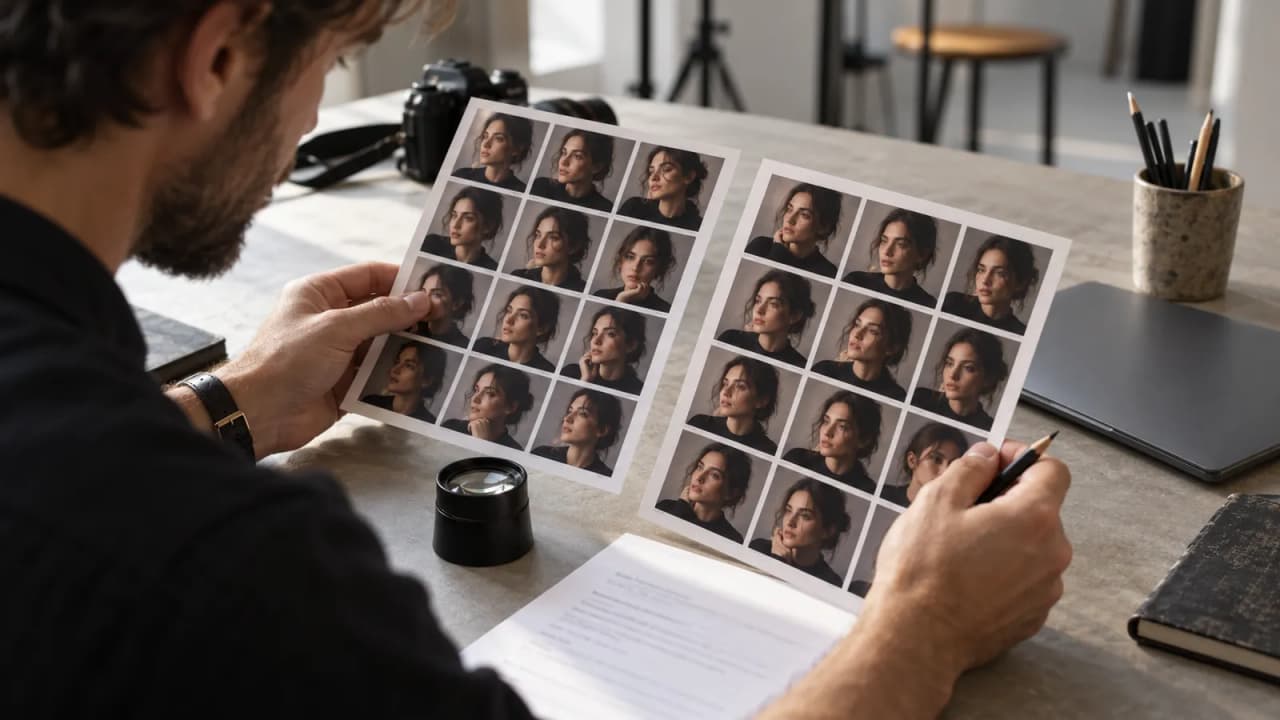
Use Lightroom Open Eyes as a proposed portrait edit that needs comparison and approval. Preserve the captured original, inspect the person's appearance closely, and decide separately whether an expanded background is appropriate. A convincing revision should not quietly become evidence of what the camera recorded.
Adobe's October 19 Lightroom mobile announcement describes Open Eyes and Generative Expand. This guide reviews that announcement on November 3 and proposes a small creator workflow; it reports no hands-on product test.
Leen, the fictional photographer for a studio-interview series, has a portrait in which her guest blinked. The guest has agreed to review a possible correction for the episode cover. Leen writes this invented brief before editing:
| Portrait decision | Filled fictional brief | Approval check |
|---|---|---|
| Intended use | Cover for an interview episode | Guest understands where the portrait will appear |
| Captured original | Full-resolution frame with the blink | Preserve the original separately |
| Proposed face edit | Try opening the guest's eyes | Compare appearance and ask the guest to review |
| Background boundary | First try a crop using the captured image | Do not add a new setting by assumption |
| Optional expansion | Add space around the existing studio backdrop | Inspect and label the generated addition appropriately |
| Final handoff | Approved cover, original reference, and edit note | Review the actual export and caption |
The example is fictional. It establishes no subject consent in a real shoot, customer result, or guarantee that a generated eye correction will match a particular person.
Agree on the use before choosing the edit
A portrait used as an interview cover has a different purpose from a record meant to show a moment exactly as captured. Decide what the image is expected to represent before changing it.
For Leen's proposed cover, the guest should know that an eye correction is being considered and should be able to reject the result. Do not assume that permission to take or publish a photograph automatically answers every question about changing a person's appearance.
Write the intended location and crop into the brief. A small cover thumbnail can conceal a detail that becomes obvious when the same portrait later appears on a large page.
Preserve a reference that remains easy to find
Keep the captured frame and a clearly identified working version. Use file names or project notes that distinguish the original, the proposed revision, and the approved export.
If you have other photographs of the person, review which material you are authorized to use for this task. Adobe says library photographs can help the feature match the person's eyes. That description does not establish what the tool will use in a particular attempt or guarantee a faithful result.
Treat the generated eyes as something to examine
Adobe says Lightroom offers Open Eyes as a Quick Action when it detects closed eyes and describes the feature as free. Check the controls actually available in the current mobile app rather than inventing a menu path when the action is absent.
When a proposed result is available, inspect the eyes in relation to the whole face. Look at shape, direction, spacing, eyelids, and whether the expression still resembles the person. Do not approve a revision only because both eyes are now visibly open.
Compare at a useful close view and at the final cover size. Small facial changes can look plausible in isolation while changing the expression of the portrait. If the result feels uncertain, keep it as a draft, try an authorized alternative, or choose an original frame that needs no such edit.
Keep background expansion as a separate decision
A portrait may need more space for a title or a different aspect ratio. First check whether a crop of the captured image can meet that need without losing important content.
Generative Expand adds content beyond the original frame. Adobe describes using it to adapt framing and create space around a subject. That added area should be reviewed as generated material, rather than assumed to show an unseen part of the actual studio.
For Leen's example, a plain backdrop extension is a narrower request than adding furniture, equipment, or a different room. Keep identifying details and meaningful objects out of the expansion unless their appearance is intentional and appropriate. Do not let a formatting task quietly rewrite the location represented by the portrait.
Compare the whole image, then the changed areas
Adobe's mobile gesture reference documents selecting and holding the photo in edit view for a before-and-after comparison. Use the supported comparison control available in your version, alongside the separately preserved original.
Make one pass over the complete composition and another over the changed areas. Check the face, hair edges, background joins, repeated textures, and any newly introduced object. A clean face correction does not establish that an expanded edge is equally convincing.
Ask the portrait subject to review the actual proposed version. Explain the changes in ordinary language and record which version they approved. If they request the original or a different frame, make that choice visible in the handoff so a later editor does not accidentally reuse the rejected draft.
Check the export and its surrounding words
Open the exported image at the intended dimensions. Confirm that the final crop, title placement, facial appearance, and backdrop match the approved version. Keep a reference to that exact file, not merely the editing project's latest state.
Review the caption and any before-and-after post together with the image. A statement that the camera captured a perfect expression would not describe a generated correction accurately. If showing the edit process, keep the explanation of the changed eyes or added background with the example.
Finish with an image decision you can explain
Save the original reference, edit brief, proposed versions, approval note, and final export together. Keep the rejected versions clearly identified so they do not become a later default.
For adapting the written planning pattern, consult the o1 guides, current specifications, and o1 AI workspace. The physical o1 device remains in development. This guide establishes no Lightroom connection, portrait import, face editing, or automatic image publishing through o1.
Choose one authorized portrait today. State its purpose, preserve the original, and approve only the smallest edit you and the subject can confidently explain.